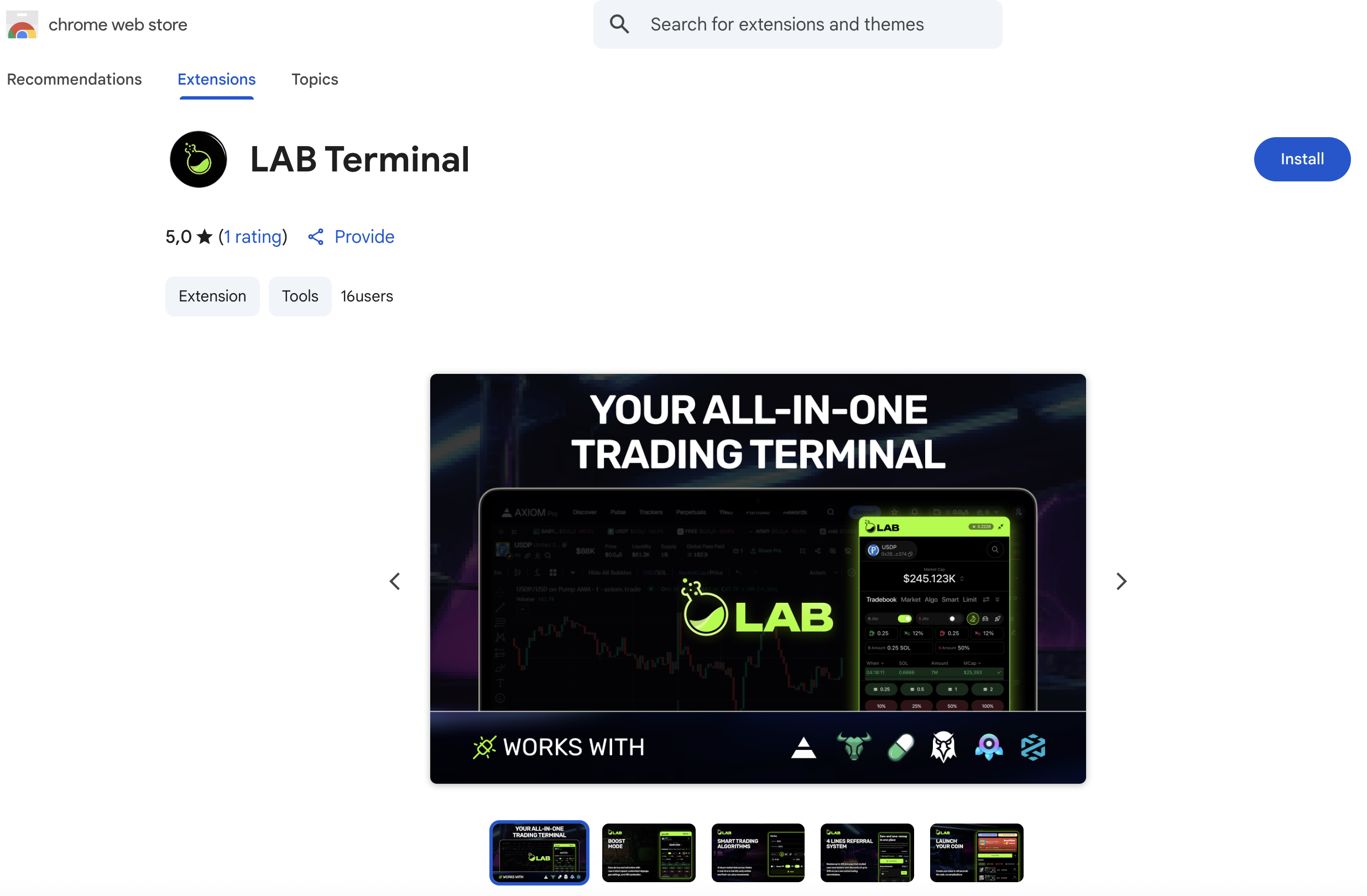
# Introducing LAB Terminal: Your New Way To Trade

<mark style="color:green;">**LAB**</mark>**&#x20;is evolving from a single platform into a complete ecosystem** with multiple tools designed to help traders succeed. <mark style="color:green;">**LAB Terminal**</mark> is the first of several products to come, all aimed at making your trading experience faster & smarter

Our <mark style="color:green;">**Trading Terminal**</mark> is the result of extensive testing, improvement, and innovation. Crafted with accuracy, it provides traders with the most advanced tools, giving you an opportunity to outperform everyone else in the market.&#x20;

**Built by Traders. Built for Traders.**


# Unique features & benefits

### Lowest Commissions

<mark style="color:green;">**LAB Terminal**</mark> charges only **0.5%** in trading fees, which is 50% less than most other platforms that charge 1%. Keep more of your profits with our low fees.

### Professional Browser Extension

Trade directly from your browser, making your trading experience smooth and efficient. No need to jump between apps or platforms.

### 4-Level Referral System

Passively earn by inviting your friends to join the LAB Ecosystem & receive rewards every time your referrals trade on the LAB Terminal. The more you refer, the more you earn.

### $LAB Token Airdrop

Become a part of the $LAB token airdrop - Just by using the terminal.\
By trading on the LAB Terminal, you can accumulate points with each trade.&#x20;

{% hint style="info" %}
Bigger trading volume = More points
{% endhint %}

These points boost your overall $LAB allocation within the Airdrop.

### Top Investors and Backers

LAB ecosystem is supported by top industry investors, led by Lemniscap and backed by tvm ventures, OKX Ventures, Mirana Ventures, KuCoin Ventures, Gate Ventures, GSR, Cypher Capital, Animoca Brands.

### Fastest Trading Algorithms

LAB Terminal features unique trading algorithms that can be individually customized to your needs. Try now & enjoy automated trades, better entry points and great perfomance

### Boost Mode

Boost Mode was designed to provide you with the possibility to set up your own presets and and trade the way you're used to. The platform will completely adjust to you.

Activate it now for faster execution of trades and optimal performance, giving you an edge in the market.

{% hint style="info" %}
Only availabe within Browser Extension
{% endhint %}

### Trading Presets with Take Profit (TP) & Stop Loss (SL)

Set and don't waste time constantly watching your trades. With automatic Take Profit and Stop Loss settings, you can create your own unique presets for better risk-management.


# What Sets LAB Terminal Apart?

### Lowest Trading Commissions

Keep more of your profits with only **0.5% in trading fees**, which is 50% less than most other platforms that charge 1%.

### Native Multichain Product

Launching on Solana in TON, <mark style="color:green;">**LAB Terminal**</mark> will soon be supporting all major chains, including non-EVM, so you can trade across a variety of platforms.

### Unique Trading Algorithms

Unlike other similar tools, LAB Terminal offers exclusive trading algorithms that provide superior speed and precision.

Those algorithms process data before it even shows up on your screen, giving you better entry points and faster trades.

### Boost Mode

Boost Mode delivers the fastest trade execution, with a simplified, optimized user interface designed for maximum efficiency.

### Optimized UX/UI

Our platform is designed for ease of use. In Boost Mode, you’ll experience a clean interface with everything you need for seamless trading.

### Referral System

<mark style="color:green;">**LAB Terminal**</mark>’s 4-level referral system lets you earn rewards by inviting others to join. Earn up to 41% of the trading commissions from your referrals


# More than just a trading platform

**It’s a complete ecosystem** designed to support your trades with the most advanced tools. Providing unique **trading algorithms, multichain support, and customizable trading features**, it’s the one-stop solution that will allow you to overcome other traders

<a href="https://t.me/LAB_Trading_bot" class="button primary">Enter The Terminal</a>


# Registration

To begin using <mark style="color:green;">LAB Terminal</mark>, first open the official [Telegram bot](https://t.me/LAB_Trading_bot).&#x20;

You’ll find a button labeled **“Open App”** or **“Open”** at the bottom of the chat&#x20;

**Click the button** to launch the LAB Terminal mini-app.

**Once the app loads, you'll be prompted to create a wallet.**

{% stepper %}
{% step %}
Tap **“Create Wallet”** at the bottom of the screen.
{% endstep %}

{% step %}
Set a 4-digit PIN code and confirm it in the next step.
{% endstep %}

{% step %}
That’s it! Your wallet is created! Click **“Continue”** to proceed to the main dashboard.
{% endstep %}
{% endstepper %}


# Safety Tips

LAB Terminal gives you full control over your assets. That means you — and only you — are responsible for securing your wallet. Here’s how to do that properly ⬇️

{% tabs %}
{% tab title="Backup Your Seed Phrase" %}
Your seed phrase is your master key. **Anyone with access to it can take your funds.**

**To back it up:**

{% stepper %}
{% step %}
Go to the Settings section in the bottom menu.
{% endstep %}

{% step %}
Select **“Export Seed Phrase.”**
{% endstep %}

{% step %}
Press and hold the blue button to reveal your 12 secret words.
{% endstep %}
{% endstepper %}

**Write them down on paper and store them somewhere safe** — never save your seed phrase in screenshots, notes, or cloud storage.
{% endtab %}

{% tab title="Enable Additional Security Measures" %}

* Set a PIN Code: From the Profile → Security section, set a PIN. This will be required once a day and when logging in from new devices.
* Enable Telegram Cloud Password: In Telegram’s native settings, set a cloud password for added protection in case someone accesses your Telegram account.
  {% endtab %}
  {% endtabs %}


# Overview

The **Wallet tab** is your main dashboard for managing assets, checking balances, and tracking transactions. Tokens are listed in descending order by value, and you can toggle between two views:

* **Assets —** displays your current token balances
* **History —** shows detailed transaction logs

At the top-left corner, you can switch between supported blockchain networks depending on which wallet you want to use.


# Creating a Wallet

**To create a new wallet:**

{% stepper %}
{% step %}
Open the mini-app and tap **“Create Wallet.”**
{% endstep %}

{% step %}
Set a 4-digit PIN and confirm it.
{% endstep %}

{% step %}
Your wallet will be generated instantly.
{% endstep %}
{% endstepper %}

You can create additional wallets later via the **Settings** section.


# Importing a Wallet

If you already have a wallet on another platform, you can import it into <mark style="color:green;">**LAB Terminal**</mark> using a private key.

**How to import:**

{% stepper %}
{% step %}
Go to the **Settings** tab at the bottom of the screen.
{% endstep %}

{% step %}
Tap **“Wallet Settings.”**
{% endstep %}

{% step %}
You’ll see all your wallets, filtered by network.
{% endstep %}

{% step %}
Tap **“Add Wallet,”** then choose **“Import Existing Wallet.”**
{% endstep %}

{% step %}
Paste your private key to complete the import.<br>
{% endstep %}
{% endstepper %}

{% hint style="info" %}
Only private keys are supported for wallet import. Seed phrases and keystore files are not accepted.
{% endhint %}


# Managing Multiple Wallets

<mark style="color:green;">**LAB Terminal**</mark> supports multiple wallets across various chains. You can:

* View wallets by network
* Switch between wallets with a swipe
* Name wallets for quick identification
* Filter by network (e.g. Solana, TON, etc.)

**This makes it easy to run different strategies or test new tokens without cross-contaminating funds.**


# Selecting Networks

The top-left selector lets you change networks on the fly. <mark style="color:green;">**LAB Terminal**</mark> currently supports:

* Solana
* Ton

{% hint style="info" %}
More chains will be added soon - Stay tuned
{% endhint %}

Each network operates independently. Make sure you’re connected to the correct one before trading or depositing.


# Depositing Funds

To fund your <mark style="color:green;">**LAB Terminal**</mark> wallet:

{% stepper %}
{% step %}
Go to the **Wallet tab**
{% endstep %}

{% step %}
Tap **“Deposit”**
{% endstep %}

{% step %}
A **QR code** will be generated, and your wallet address will be copied to your clipboard
{% endstep %}
{% endstepper %}

**Currently supported networks:** Solana, Ton

*You must deposit native tokens for each network (e.g. TON on TON, SOL on Solana).*\
\
*Stablecoins like USDT or USDC are not supported for trading in <mark style="color:green;">**LAB Terminal**</mark>.*


# Withdrawing Funds

#### To Withdraw

{% stepper %}
{% step %}
Open the **Wallet tab**
{% endstep %}

{% step %}
Tap **“Send”**
{% endstep %}

{% step %}
Choose the token you want to transfer
{% endstep %}

{% step %}
Enter the destination address and confirm
{% endstep %}
{% endstepper %}

{% hint style="info" %}
Always leave a small amount of native tokens to cover gas fees when withdrawing.
{% endhint %}

You can send funds to any compatible address - including other <mark style="color:green;">**LAB Terminal**</mark> wallets.


# Help Button

The **Help button** (top-right of the Wallet tab) gives you instant access to <mark style="color:green;">**LAB Terminal**</mark> support and community resources

### Here's what's inside:

<table data-card-size="large" data-view="cards"><thead><tr><th></th><th></th><th data-type="content-ref"></th><th data-hidden data-card-target data-type="content-ref"></th><th data-hidden data-card-cover data-type="files"></th><th data-hidden></th></tr></thead><tbody><tr><td><strong>LAB Terminal Chat</strong></td><td>Connect with other degens, ask questions and have fun</td><td><a href="https://t.me/lab_global_chat">https://t.me/lab_global_chat</a></td><td><a href="https://www.gitbook.com/integrations#analytics">https://www.gitbook.com/integrations#analytics</a></td><td><a href="/files/7bOTR8ZFXq95xr7GZQ9Y">/files/7bOTR8ZFXq95xr7GZQ9Y</a></td><td></td></tr><tr><td><strong>Official Twitter (X)</strong></td><td>Stay updated on releases and events</td><td><a href="https://x.com/LABtrade_">https://x.com/LABtrade_</a></td><td><a href="https://www.gitbook.com/integrations#support">https://www.gitbook.com/integrations#support</a></td><td><a href="/files/KDAjVeYR8n0H9GNFfvGq">/files/KDAjVeYR8n0H9GNFfvGq</a></td><td></td></tr></tbody></table>


# Meet the LAB Terminal Extension

Your trading setup just got a major upgrade.

This isn’t just another browser tool - the <mark style="color:green;">**LAB Extension**</mark> transforms how you trade by combining your favourite analytics platforms with lightning-fast execution and serious cost savings.

<figure><img src="/files/JX4Q1l9GYdYAk69D78bh" alt=""><figcaption></figcaption></figure>

**Keep Your Tools. Boost Your Results.**\
Still using other Trading Platforms? Perfect. You don’t need to change a thing. LAB Extension works on top of any terminal you already use.

Just view a token pair - the extension detects it automatically. You place the trade through LAB.

Result?

* 50% lower platform fees
* Airdrop eligibility unlocked
* Faster fills, smarter trades

{% hint style="info" %}
You get the best of both worlds: familiar tools, but with much stronger performance.
{% endhint %}

#### Unified Workflow

The LAB Extension connects LAB Trading Terminal and Telegram in one place. No need to switch between apps - everything you need to trade and manage positions is right in your browser.

#### Instant Trade Execution

Use the built-in Action Panel to place trades instantly from your terminal screen. It’s fast, simple, and helps you catch market moves without delay.

#### Full Strategy Control

Set up custom trading presets that fit your style. Whether you're following charts, alerts, or signals - control everything from the web or Telegram.

#### Cross-Platform Flexibility

Trade wherever you are. The LAB Telegram bot lets you place orders and manage trades straight from your phone - no complicated mobile apps.

#### Wallet Sync & Performance Tracking

Easily connect your wallet to Telegram. Track your profits, trades, and wallet activity in real time - on desktop or mobile.

#### Fast, Easy Setup

Install the extension in minutes. Everything works in your browser - no Telegram setup needed.

#### Multi-Platform Support

The extension works with major trading platforms — giving you one place to trade, manage, and monitor everything directly from your browser.

### More Than Just an Extension

Think of it as an L2 trading infrastructure: operating above your existing terminals to make trading faster, more efficient, and more cost-effective.

This isn’t just about placing buy/sell orders - LAB Extension brings full terminal-grade capability to your browser. Analyze anywhere, trade instantly, and consolidate your entire process into one powerful interface.

**Speed. Control. Simplicity.**\
That’s what the LAB Extension delivers.


# Preparation

### Before installation, make sure that:

#### You have Google Chrome installed.

<figure><img src="/files/00HfECtT3T7sEgiGP8X1" alt=""><figcaption></figcaption></figure>

#### The Telegram App is installed on your computer

<figure><img src="/files/KZ2bjcaT69w74NnLOGMq" alt=""><figcaption></figcaption></figure>


# Installation

{% stepper %}
{% step %}
Go to the following link to install the extension from the Chrome Web Store

[Lab Terminal - Chrome Web Store](https://chromewebstore.google.com/detail/lab-terminal/kfhmememmflbdeceaokeakdejlndmddo)
{% endstep %}

{% step %}
Click the "**Add to Chrome**" button and confirm the installation.
{% endstep %}

{% step %}
After installation, in the top right corner, click on the puzzle icon (extension panel), find Lab Terminal.
{% endstep %}

{% step %}
Click the **"Pin"** icon to pin it to the panel.
{% endstep %}

{% step %}
Click on the Lab Terminal icon to open the extension.
{% endstep %}
{% endstepper %}

<figure><img src="/files/k0EHsiTP0hHzaKr2K9vu" alt=""><figcaption></figcaption></figure>

<br>

<br>


# Authorizing in Lab Terminal

{% stepper %}
{% step %}
In the opened window, click "**Log in via Telegram.**"

You can also choose to log in via Google, but this will create a new account in Lab Terminal.\
Click "**Get code**" — the Telegram app will open, and in the Lab Terminal bot, you will receive a one-time confirmation code.
{% endstep %}

{% step %}
Copy the code and paste it into the corresponding field in the extension.
{% endstep %}

{% step %}
Click "Verify" to complete the authorization.

After a successful login, you will be redirected to your Lab Terminal account
{% endstep %}
{% endstepper %}

Congratulations! The <mark style="color:green;">**Lab Terminal**</mark> extension is successfully installed and ready to use.

Now, when you visit token pages on services like Dexscreener, Dextools, Axiom, GMGN, Photon, or Bullx, the corresponding token trading section in Lab Terminal will automatically open.

<br>


# Setting Up a Trade

{% stepper %}
{% step %}
In the top left corner, choose the wallet and network you want to trade on.
{% endstep %}

{% step %}
To find the token you want to buy, paste its smart contract or pair address into the search bar.
{% endstep %}

{% step %}
A trading window will open displaying the token’s key metrics, including:

* Market Capitalization
* 24h Trading Volume
* Liquidity
* Price and 24h Price Change (%)
* Contract Address (CA) and Pair Address (P) (click to copy)
* Coin Name
  {% endstep %}
  {% endstepper %}

**Below the main stats, you'll see quick action buttons:**

* **“Graph”** – Opens a price chart for the token
* **“Analysis”** – Launches the analytics bot for deeper insight
* **“Share”** – Copies a direct referral link to the token in <mark style="color:green;">**LAB Terminal**</mark>


# PnL Token Cards

You can share your trading performance using PnL (Profit & Loss) cards. These visual cards highlight your entry, exit, and profit in a clean format.

### How to Create PnL Cards

**Horizontal Card:**

* In the “Trade” section, tap the three dots (…) on the token card.
* Select “Share PnL” to generate a horizontal card showing your trade outcome.<br>

**Vertical Card (for Stories):**

* Tap the three dots (…) again.
* Select “Share in Stories” to generate a vertical card, ideal for Instagram or Telegram Stories.

{% hint style="info" %}
These are perfect for showcasing your gains or keeping a personal record of your trade performance.
{% endhint %}


# Market Order

A **Market Order** lets you buy or sell a token instantly at the current market price. This is the fastest way to enter or exit a position.

**To Buy a Token Instantly:**

{% stepper %}
{% step %}
In the **“Order Type”** section, select Buy → Market.
{% endstep %}

{% step %}
Enter the amount you want to spend in USD or the network’s native token (e.g., SOL, TON).
{% endstep %}

{% step %}
Use the quick-select buttons for faster input.&#x20;

You can customize these in **Profile → Personalization.**
{% endstep %}

{% step %}
Optionally, set Take Profit and Stop Loss targets in advance.
{% endstep %}

{% step %}
Tap **“Swap”** to complete the trade.
{% endstep %}
{% endstepper %}

**To Sell at Market Price:**

{% stepper %}
{% step %}
Select Sell → Market in the **“Order Type”** section.
{% endstep %}

{% step %}
Enter the amount to sell (in USD or token quantity).
{% endstep %}

{% step %}
Tap **“Swap”** to sell instantly at the current price.
{% endstep %}
{% endstepper %}


# Order Settings

These settings let you fine-tune how your orders are executed. Use them to reduce failed trades, limit fees, and improve execution speed.

{% tabs %}
{% tab title="Basic Settings" %}

* **Slippage** – Set the max price difference you're willing to accept to prevent failed trades due to volatility.
* **Additional Gas Price** – Add a small gas buffer to prioritize your transaction during high activity.
* **MEV Protection** – Shields your trades from MEV bots (e.g., sandwich attacks that exploit price changes right before your trade).&#x20;

{% hint style="info" %}
Available only for trades on Solana
{% endhint %}

* **Auto-Approve** – Automatically gives token approval after purchase, which saves time on future trades.
  {% endtab %}

{% tab title="Solana Gas Settings" %}
Solana allows you to pick a gas speed mode depending on your needs:

* **Normal** – Standard speed and cost. Ideal for casual trading.
* **Fast (+300%)** – Speeds up transaction confirmation by paying 3x standard fees.
* **Degen (+900%)** – Maximum speed for urgent trades.
* **Custom** – Manually adjust gas fees to your own preference.
  {% endtab %}
  {% endtabs %}


# Limit Order

A **Limit Order** lets you buy or sell a token at a specific price instead of the current market price.

{% tabs %}
{% tab title="To Create a Buy Limit Order:" %}

* In the **“Order Type”** section, select **Buy → Limit**.
* In the **Trigger section**, set the target token price, or choose a percentage drop at which your order will be activated.
* Enter the amount you want to use to buy the token.
* You can also set **Take Profit** and **Stop Loss** values so your position can auto-sell at your chosen price range.
* Tap **“Create Order”** to confirm.
  {% endtab %}

{% tab title="To Sell via Limit Order:" %}

* Select **Sell → Limit** in the **“Order Type”** section.
* Set the price you want to sell at, or specify the desired percentage increase.
* Choose how many tokens to sell (enter a specific amount or a percentage of your total balance).
* Tap **“Create Order.”**
  {% endtab %}
  {% endtabs %}


# Stop Loss

A Stop Loss Order automatically sells your tokens if the price drops below a certain threshold — minimizing potential losses.

**To Set a Stop Loss:**

{% stepper %}
{% step %}
Choose **Sell → Stop Loss** in the **“Order Type”** section.
{% endstep %}

{% step %}
In the **Trigger section**, enter the token price or percentage drop that should trigger the sale.
{% endstep %}

{% step %}
Below that, set the amount or percentage of your position to be sold.
{% endstep %}

{% step %}
Tap **“Create Order”** to confirm.
{% endstep %}
{% endstepper %}

{% hint style="info" %}
&#x20;Stop Losses help protect your capital during rapid market crashes or unexpected volatility.
{% endhint %}


# Smart Order

## Introducing Smart Order - A new Era of Trading on DEX

Are you tired of missing out when the price reverses just a few points from your limit order?&#x20;

Say no more! Smart Order is here to solve that issue and take your trading to the next level.

{% content-ref url="/pages/5KjBzmVuQ72tgjd8TANF" %}
[What is Smart Order?](/smart-order/what-is-smart-order)
{% endcontent-ref %}

{% content-ref url="/pages/hzELnkQ4d3h6XCSMW3ec" %}
[How Does It Work?](/smart-order/how-does-it-work)
{% endcontent-ref %}

{% content-ref url="/pages/rsRAu3oN0j8DOVkqCXuL" %}
[Customizable Features](/smart-order/customizable-features)
{% endcontent-ref %}

{% content-ref url="/pages/hKR2HSQtHabbk2uPYAof" %}
[Why Choose Smart Order?](/smart-order/why-choose-smart-order)
{% endcontent-ref %}


# What is Smart Order?

**Smart Order** is a unique trading tool designed for those who want to maximize their profits by ensuring you don’t miss any opportunities.&#x20;

**Based on real-life experiences of experienced DEX traders**, it allows you to set precise parameters and trade smarter, not harder.


# How Does It Work?

* **Set your desired price range** (e.g., from $4M to $10M in market cap or from $4 to $10 in price).<br>
* The system will **automatically** distribute your orders at different levels within this range.<br>
* If the price reverses and hits one of your defined levels, t**he system will automatically close the order,** locking in your profits and **preventing further losses**.


# Customizable Features

#### Smart Order comes with the flexibility you need to manage your trades more effectively:

* **Adjustable Number of Levels**: Choose how many levels you want within your set range.
* **Manual or Automatic Range Selection:** Set the price range manually or let the system automatically choose the best one.

### Three Closing Strategies

{% tabs %}
{% tab title="Auto-Close Immediately" %}
Your order closes as soon as the price hits your level.
{% endtab %}

{% tab title="Reversal Confirmation" %}
Wait until a price reversal confirms the right time to close the order.
{% endtab %}

{% tab title="Smart Price Pursuit" %}
The system dynamically adjusts levels if the price moves out of the range, ensuring your orders always stay relevant.
{% endtab %}
{% endtabs %}


# Why Choose Smart Order?

* **Maximize Profits, Minimize Missed Opportunities:** With Smart Order, you’ll never miss the chance to trade at the optimal price points.<br>
* **Trade Like a Pro:** Buy and sell close to the local highs and lows of the market.<br>
* **Effortless Professional Tools:** Smart Order combines high-end trading strategies into a simple, intuitive interface.<br>
* **Fully Automated and Efficient:** Say goodbye to manual tracking – Smart Order handles everything automatically.


# Fast Trading (Quick Orders)

**Quick Orders** let you execute trades instantly, without configuring each trade manually. Perfect for buying tokens fast in high-speed situations.

### How to Activate Quick Orders

{% stepper %}
{% step %}
Go to the **“Trade”** section and tap **“Quick Trade.”**
{% endstep %}

{% step %}
Create a Template:

* Select the network
* Name your template
* Choose which wallet to use
* Enter the amount you want to spend
* Set slippage, gas price, and enable MEV protection
* Click “Save Settings”
  {% endstep %}

{% step %}
Set Take Profit and Stop Loss:

* Add your target sale conditions
* Include fallback rules like Stop Loss in case of rapid drops
* Save your trade rules
  {% endstep %}

{% step %}
(Optional) Enable “Purchase Without Confirmation”

{% hint style="info" %}
Not recommended for beginners.
{% endhint %}
{% endstep %}
{% endstepper %}

### Activating Your Template

Your saved template will appear under Purchase Templates. Select it and activate.

Once active, all transactions from the chosen wallet will follow the template settings.

### Trading With It

* Paste a token contract
* Or forward a token message
* Or send a chart link

<mark style="color:green;">**LAB Terminal**</mark> will execute the trade immediately based on your template – no extra steps required.

<br>


# Boost Your Trades

**Boost Mode** is <mark style="color:green;">**LAB Terminal’s**</mark> ultra-fast trading terminal for **Solana-based** tokens.

It allows you to execute buy and sell orders with near-instant speed, customized slippage, gas settings, and MEV protection — all within one compact interface.

{% hint style="info" %}
Boost Mode is designed for experienced traders who need rapid execution and full manual control.
{% endhint %}

### How to Access Boost Mode

{% stepper %}
{% step %}
Tap the “Trade” button in the bottom menu.
{% endstep %}

{% step %}
Tap the “Boost Mode” button on the top half of the screen.
{% endstep %}

{% step %}
Paste a contract address in the search bar to open that token’s Boost Mode panel.
{% endstep %}
{% endstepper %}

***

### Main Dashboard Overview

**At the top, you’ll see:**

* **Market Cap** – Current market cap of the selected token (tap to switch between price or MC view)
* **Buy/Sell** – Total SOL you’ve traded in this token
* **Total Profit** – Realized gains or losses
* **Value** – Current value of your held position

{% hint style="info" %}
These metrics help you track token performance and your PnL in real time.
{% endhint %}

***

### Speed Panel

The middle section gives you complete control over execution conditions and gives you three customizable speed presets.

**Speed Presets**

By default the presets are programmed to do the following:

{% tabs %}
{% tab title="Rabbit" %}
Standard execution, low gas usage
{% endtab %}

{% tab title="Car" %}
Faster confirmation, moderate gas
{% endtab %}

{% tab title="Rocket" %}
Maximum speed, ideal for sniping or rapid exits
{% endtab %}
{% endtabs %}

{% hint style="info" %}
You can customize the settings in each icon to your preference and switch to it on the fly.
{% endhint %}

***

**Jito MEV Protection on Solana**

### Jito MEV Protection on Solana

* Toggle Jito ON/OFF separately for buys and sells
* When enabled, your transaction is routed through Jito to further reduce MEV risk (e.g., sandwich attacks)

***

### Slippage and Gas Inputs

* Buy Slippage – Max acceptable price impact for buy orders (default: 5%)
* Buy Gas (Priority Fee) – Set the tip you're willing to pay to miners for faster buy confirmation<br>
* Sell Slippage – Slippage tolerance for sell orders
* Sell Gas (Priority Fee) – Gas tip to accelerate your sell transactions

{% hint style="info" %}
You can edit these fields manually to match your strategy.
{% endhint %}

***

### Order Controls

Manual order controls in the center of the screen:

{% tabs %}
{% tab title="Buy Amount" %}
Adjust how much SOL to spend per trade
{% endtab %}

{% tab title="Sell Percentage" %}
Choose what % of your holdings to sell (e.g., 100% to exit fully)
{% endtab %}
{% endtabs %}

{% hint style="info" %}
Use the – / + buttons to make precise adjustments.
{% endhint %}

***

### Bottom Quick-Action Panel

This panel helps you quickly enter trade amounts or exit positions and can be customized in the settings tab.

* **Buy Presets:** 0.25, 0.5, 1 SOL
* **Sell Presets:** 20%, 50%, 100% of your holdings

**Tap Buy or Sell** to execute immediately based on your configured settings

{% hint style="info" %}
All settings are applied in real time. Additionally, you don’t need to confirm trades separately once you press Buy or Sell.
{% endhint %}

***

### Trade Log

Below the main panel is your trade history for the selected token:

* Displays when you traded, how much, and at what price
* If there are no active orders or trades yet, the section will say: **“No active orders”**
* Failed transactions (e.g., due to slippage or low gas) will show error messages in red


# Language

<mark style="color:green;">**LAB Terminal**</mark> supports multiple languages to accommodate a global user base.

**To change the language:**

{% stepper %}
{% step %}
Go to the **Settings tab** in the bottom menu
{% endstep %}

{% step %}
Tap **“Language”**
{% endstep %}

{% step %}
**Select** your preferred language from the list
{% endstep %}
{% endstepper %}

The entire interface will update instantly based on your selection.

More languages are added regularly, if yours isn’t available yet, it may be coming soon.

<br>


# Personalization Features

This section allows you to tweak your trading interface to fit your style. You can set up quick buttons, default order settings, and more.

**Features You Can Customize:**

* **Default Network** – Solana, TON.
* **Preferred Chart Service** – DexScreener, DexTools, GeckoTerminal
* **Preferred Analytics Bot** – SafeAnalyzer, TTF Bot, PIRBViewBot, (You can also add bots)
* **Quick-Select Buttons** – Adjust preset amounts for Orders (e.g., 25%, 50%, 100%)
* **Order Templates** – Save custom trade settings for fast re-use

{% hint style="info" %}
These settings are especially useful for frequent traders who want to streamline their workflow.
{% endhint %}

<br>


# Invite Your Friends

**Boost Your Earnings with&#x20;**<mark style="color:green;">**LAB Terminal's**</mark>**&#x20;Referral System**

<mark style="color:green;">**LAB Terminal**</mark> offers an exciting referral system that allows users to **save on commissions** and **earn passively** at the same time.

By referring friends to join <mark style="color:green;">**LAB Terminal**</mark>, you can earn up to **41%** from the commissions of your invited users.&#x20;

The more friends you invite and the more they trade, the greater your total volume will be, which means bigger discounts for you.

### Earn passive income through four levels of referrals

| L1 (Direct Referrals)              | L2                                | L3                                | L4                                |
| ---------------------------------- | --------------------------------- | --------------------------------- | --------------------------------- |
| 35% of commissions from each trade | 3% of commissions from each trade | 2% of commissions from each trade | 1% of commissions from each trade |

### Increase your passive income by simply sharing links to trading pairs

<mark style="color:green;">**LAB Terminal**</mark> gives you a unique opportunity to earn a percentage of commissions even from traders who are not your referrals

{% stepper %}
{% step %}
Share a link to your preferred trading pai
{% endstep %}

{% step %}
Receive **50%** of the trading commissions of those who clicked on your link and made a trade
{% endstep %}
{% endstepper %}

{% hint style="info" %}
No matter if it is a new trader or an experienced user of <mark style="color:green;">**LAB Terminal**</mark> - you will get 50% in any case.
{% endhint %}

### How to Join Referral Program

**Getting started takes just a few taps:**

{% stepper %}
{% step %}
Go to the “Referrals” section in the bottom menu bar of the app.
{% endstep %}

{% step %}
Copy your unique referral link.
{% endstep %}

{% step %}
Share it with friends, communities, or on social media.
{% endstep %}

{% step %}
As soon as someone signs up and trades, you'll start earning.
{% endstep %}
{% endstepper %}


# Airdrop Overview

**When&#x20;**<mark style="color:green;">**LAB Terminal**</mark>**&#x20;came out of closed beta, we wanted to launch with more than just new features**. \
\
Crypto trading today is fragmented - traders switch between many apps, losing time and money to fees, delays, and clunky tools.\
\ <mark style="color:green;">**LAB**</mark> was built as a layer on top of these platforms, improving what you already use instead of trying to replace it.

With <mark style="color:green;">**LAB Terminal**</mark> you get **faster execution, lower fees, AI-powered trading signals, advanced order types (TP/SL, MEV protection, custom gas), a browser sidebar extension, perpetual futures, and multichain support** (Solana, Base, Ethereum, BSC and more on the way).

#### To mark this launch, we introduce you to the **LAB Loyalty Airdrop**: a two-season rewards program.

{% hint style="info" %}
**Season 1 (Loyalty Airdrop)** — rewards your past trading on external platforms.
{% endhint %}

{% hint style="info" %}
**Season 2 (Trading Airdrop)** — rewards active trading inside LAB Terminal.
{% endhint %}

Both seasons are live now and will run until the **Token Generation Event (TGE)** in **Q4 2025**, when all $LAB rewards can be claimed.


# Wallet Import & Verification

Not every trader used Phantom or MetaMask directly. Many relied on built-in wallets inside other trading terminals. \
**If that’s the case, you can still join the airdrop** - but first you need to import that wallet into a standard application like Phantom.

### Follow these steps

{% stepper %}
{% step %}
**Export your wallet**

* Go to the trading platform where you used the built-in wallet.
* Find the option to export your recovery phrase or private key (usually under *Settings*, *Account*, or *Security*).
* Copy it carefully.
* **Important:** never share this with anyone — it gives full control over your funds.
  {% endstep %}

{% step %}
**Import into a supported wallet**

* Download and install a wallet app such as Phantom.
* Choose *Import Wallet* and paste your recovery phrase or private key.
* Set up a password to secure your new wallet.
  {% endstep %}

{% step %}
**Connect to LAB**

* Go to [lab.pro/loyalty](https://lab.pro/loyalty?utm_source=chatgpt.com).
* Connect your imported wallet.
* Sign a read-only message to verify your trading history.
  {% endstep %}

{% step %}
**Claim and start unlock the allocation**

* Check your eligibility and claim Lootboxes.
* Begin trading on LAB Terminal to unlock or accumulate more LAB points.
  {% endstep %}
  {% endstepper %}

After this, your wallet is fully set up for both Loyalty and Trading Airdrop participation.


# Season 1 - Loyalty Airdrop

Season 1 is about rewarding what you’ve already done in the past. If you traded on the following platforms, **you might be eligible for a Lootbox and extra points:**

* Jupiter
* Phantom
* Axiom
* GMGN
* BullX
* Pump.Fun
* Padre
* Photon
* Trojan
* Banana Gun
* Maestro
* Bloom

By connecting your wallet at [lab.pro/loyalty](https://lab.pro/loyalty?utm_source=chatgpt.com), you can claim **Lootboxes with $LAB** linked to your trading history.&#x20;

Alongside Lootboxes, you’ll also receive **bonus LAB points**. These points are locked at first — to unlock them, you need to trade directly on <mark style="color:green;">**LAB Terminal**</mark>. Every **$3.75 traded unlocks 1 point**.

To make sure nothing is missed, you can connect **multiple wallets to a single&#x20;**<mark style="color:green;">**LAB**</mark>**&#x20;account**. This way, all your trading history across platforms counts toward your rewards.


# Season 2 - Trading Airdrop

### While Season 1 looks back, Season 2 is about rewarding what you do now

This program focuses on your active trading inside LAB Terminal and offers much larger rewards.&#x20;

> **Every trade counts - buys, sells, limit orders, or advanced strategies - everything generate LAB points.**

**There is no cap: the more you trade, the more points you earn.** \
The system is built to reward performance, not just participation. High-frequency and high-volume traders naturally climb the leaderboard and secure bigger allocations of $LAB.

### Season 2 also introduces a referral system

When you invite someone to LAB and they start trading, you receive points from their activity, along with revenue share. The leaderboard adds extra competition - your position determines your reward tier, unlocking better bonuses, more points, and sometimes additional Lootboxes.

**How to take part in Season 2:**

{% stepper %}
{% step %}
Trade directly on LAB Terminal (every transaction earns points).
{% endstep %}

{% step %}
Increase your trading volume to climb the leaderboard.
{% endstep %}

{% step %}
Invite other traders with your referral link to earn extra points and revenue share.
{% endstep %}

{% step %}
Track your progress on the leaderboard and unlock higher rewards.
{% endstep %}
{% endstepper %}

Season 1 and Season 2 run in parallel until the **Token Generation Event (TGE)** in **Q4 2025**. At that time, all your accumulated LAB points and Lootboxes will be converted into $LAB tokens and become claimable.